
Setting up IPTV can feel confusing if you are new, but with Xtream IPTV, the process is simple and beginner-friendly. In this guide, you’ll learn how to set up Xtream IPTV step by step on all popular devices, including Smart TVs, Android, Firestick, iPhone, and Windows.
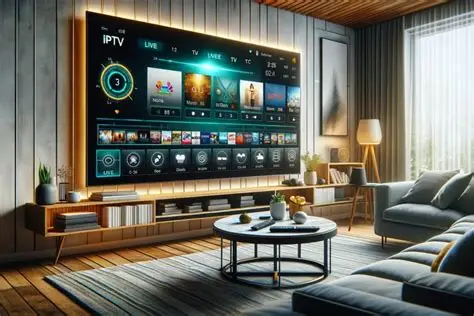
This tutorial is written for beginners, with clear explanations and no technical knowledge required.
What You Need Before Setting Up Xtream IPTV
Before starting, make sure you have the following:
✅ A stable internet connection
✅ An IPTV subscription that supports Xtream IPTV
✅ Xtream IPTV login details:
Server URL
Username
Password
✅ An IPTV app that supports Xtream Codes API
If you don’t have an IPTV subscription yet, many users look for Xtream-based services from providers such as https://iptvxtream.shop/, which focus on Xtream IPTV compatibility.
What Is Xtream IPTV Login?
Xtream IPTV login uses three simple details instead of long playlist links:
Server URL
Username
Password
These details allow your IPTV app to connect directly to the provider’s server and automatically load channels, movies, series, and the TV guide.
Best Apps That Support Xtream IPTV
Before setup, choose one of these popular IPTV apps:
IPTV Smarters Pro
TiviMate
XCIPTV
IBO Player
Smart IPTV
Most steps are similar across all apps.
Xtream IPTV Setup on Android (Phone & Android TV)
Android is one of the easiest platforms for Xtream IPTV.
Step 1: Install IPTV App
Open Google Play Store
Search for IPTV Smarters Pro or TiviMate
Install the app
Step 2: Open App & Choose Login Method
Open the app
Select Login with Xtream Codes API
Step 3: Enter Xtream IPTV Details
Fill in:
Server URL
Username
Password
Profile name (any name you want)
Click Login
Step 4: Wait for Content to Load
The app will automatically:
Load live channels
Sync movies & series
Download EPG
This may take 1–2 minutes.
Step 5: Start Watching
Once loading is complete, you can:
Watch live TV
Browse movies
Open series
Use the TV guide
Xtream IPTV Setup on Amazon Firestick
Firestick is one of the most popular devices for IPTV.
Step 1: Enable Apps from Unknown Sources
Go to Settings
Select My Fire TV
Click Developer Options
Enable Apps from Unknown Sources
Step 2: Install Downloader App
Open Amazon App Store
Install Downloader
Step 3: Download IPTV Smarters Pro
Open Downloader
Enter official IPTV Smarters download URL
Install the app
Step 4: Login with Xtream IPTV
Open IPTV Smarters
Choose Xtream Codes API
Enter your login details
Click Add User
Step 5: Enjoy IPTV
Your Firestick is now ready for IPTV streaming.
Xtream IPTV Setup on Smart TV (Samsung & LG)
Smart TVs require IPTV apps available in their app stores.
Supported Apps
Smart IPTV
IBO Player
SET IPTV
Step 1: Install IPTV App
Open TV App Store
Install IBO Player or Smart IPTV
Step 2: Get Device MAC Address
Open the app
Note the MAC address shown on screen
Step 3: Upload Xtream IPTV Details
Go to the app’s activation website
Enter MAC address
Select Xtream Codes API
Enter server URL, username, and password
Step 4: Restart App
Restart TV or app
Channels will load automatically
Xtream IPTV Setup on iPhone & iPad (iOS)
Step 1: Install IPTV App
Open App Store
Install IPTV Smarters or GSE Smart IPTV
Step 2: Login Using Xtream Codes
Open app
Select Xtream Codes API
Enter login details
Tap Login
Step 3: Start Streaming
Channels and VOD will load automatically.
Xtream IPTV Setup on Windows PC or Mac
Option 1: IPTV Smarters for Windows
Download IPTV Smarters for PC
Install and open app
Login using Xtream Codes API
Option 2: VLC Media Player
Less user-friendly
Requires manual configuration
Not recommended for beginners
How Long Does Xtream IPTV Setup Take?
⏱ Average setup time:
Mobile devices: 2–3 minutes
Firestick: 5–7 minutes
Smart TV: 5–10 minutes
Xtream IPTV is one of the fastest IPTV setups available.
Common Xtream IPTV Setup Problems & Fixes
Xtream IPTV Login Failed
Fix:
Check username & password
Ensure server URL includes http://
Restart app
Channels Not Loading
Fix:
Refresh playlist
Restart device
Check subscription status
Buffering After Setup
Fix:
Use faster internet
Switch video decoder
Use Ethernet cable if possible
Best Settings for Xtream IPTV (Pro Tips)
To improve performance:
Enable hardware decoding
Use HLS or MPEG-TS format
Set EPG update to automatic
Limit background apps
Is Xtream IPTV Safe to Use?
Xtream IPTV itself is safe technology.
Safety depends on:
IPTV provider quality
Internet security
Optional VPN usage
Using trusted providers such as https://iptvxtream.shop/ helps reduce common issues like downtime and buffering.
Advantages of Using Xtream IPTV Setup
✅ Beginner-friendly
✅ No playlists needed
✅ Automatic updates
✅ Clean interface
✅ Faster loading
✅ Works on all devices
Frequently Asked Questions (FAQ)
Can I change IPTV apps later?
Yes. You can use the same Xtream IPTV login on different apps.
Do I need to set up EPG manually?
No. EPG loads automatically with Xtream IPTV.
Can I use one account on multiple devices?
Only if your subscription allows multiple connections.
What internet speed is required?
Minimum 20 Mbps recommended for HD streaming.
Final Thoughts
Setting up Xtream IPTV is fast, simple, and suitable for beginners. With just a server URL, username, and password, you can access thousands of live TV channels, movies, and series on almost any device.
If you’re looking for Xtream IPTV-compatible services and guidance, many users reference platforms like https://iptvxtream.shop/ for Xtream-based IPTV solutions.